Images
Help Docs Home > Listing Editor > Images
To navigate to the Listing images area, first click Listing in the left-hand side navigation, then click on ‘Images’ from the sub-navigation along the top of the editor window.

Images
The Images section is where you will upload photos that will display on your listing. The number of images you’ll be able to upload depends on the plan you’ve chosen or subscribed to.
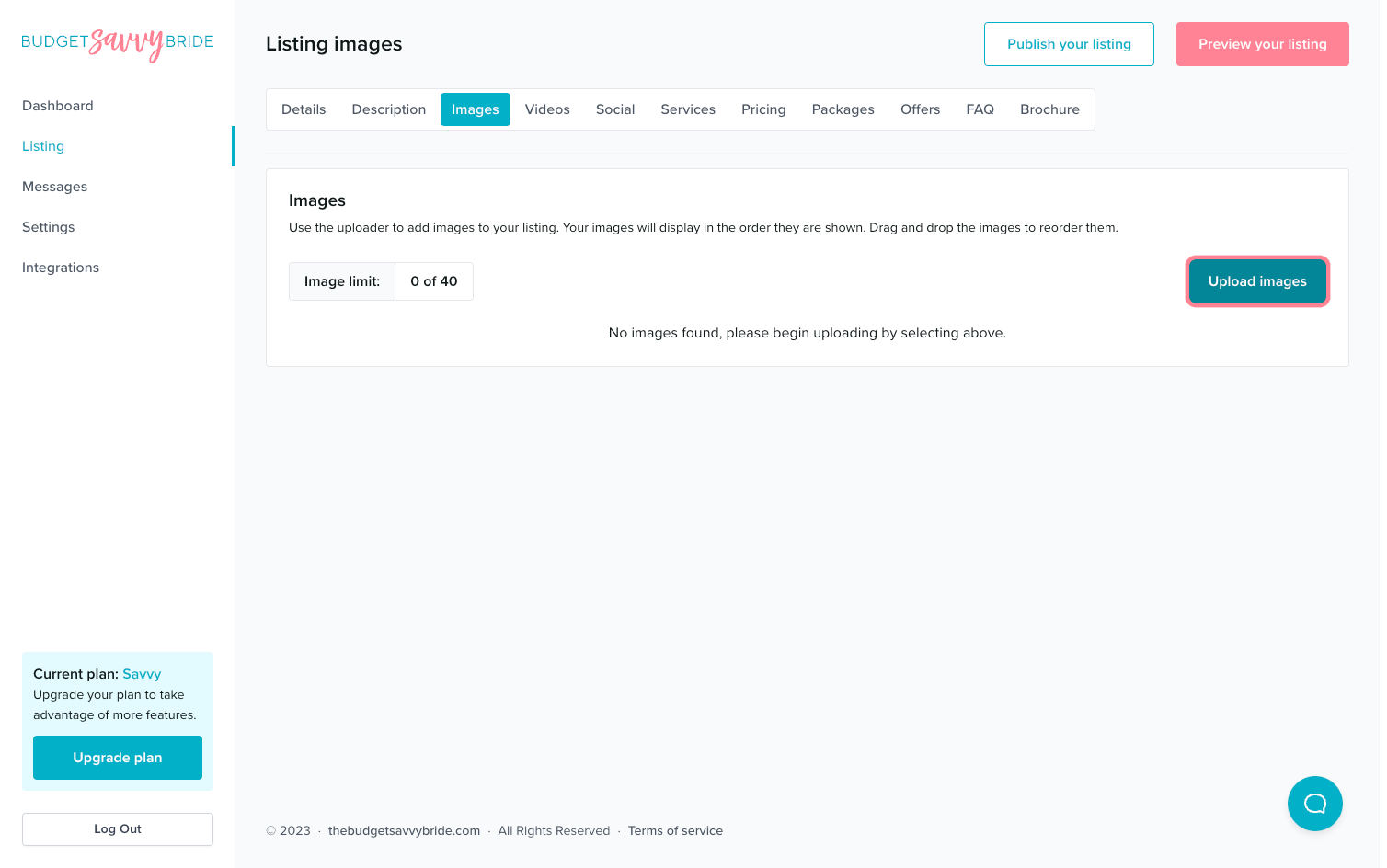
IMAGE SIZE GUIDELINES:
- Images must be less than 1.5MB each.
- 800×600 is the minimum size for images.
- If you need to resize an image, do so before uploading it to your profile.
To upload images:
Use the uploader to add images to your listing.
- Click on the button that says ‘Upload Images’ then select your chosen images from your computer.
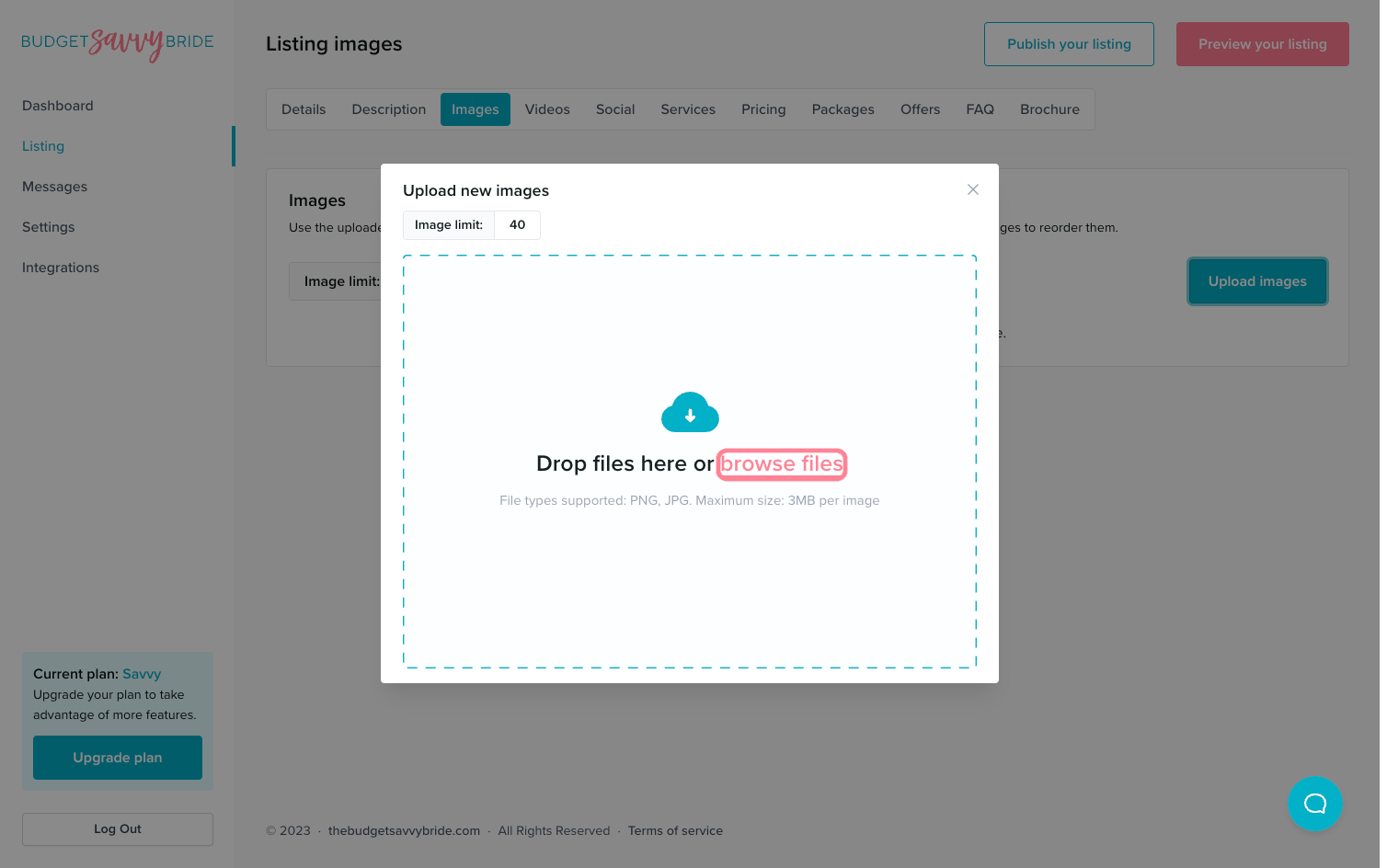
- You can click ‘browse files’ or you can drag and drop the files from your computer to your browser within the modal to add your selected images.
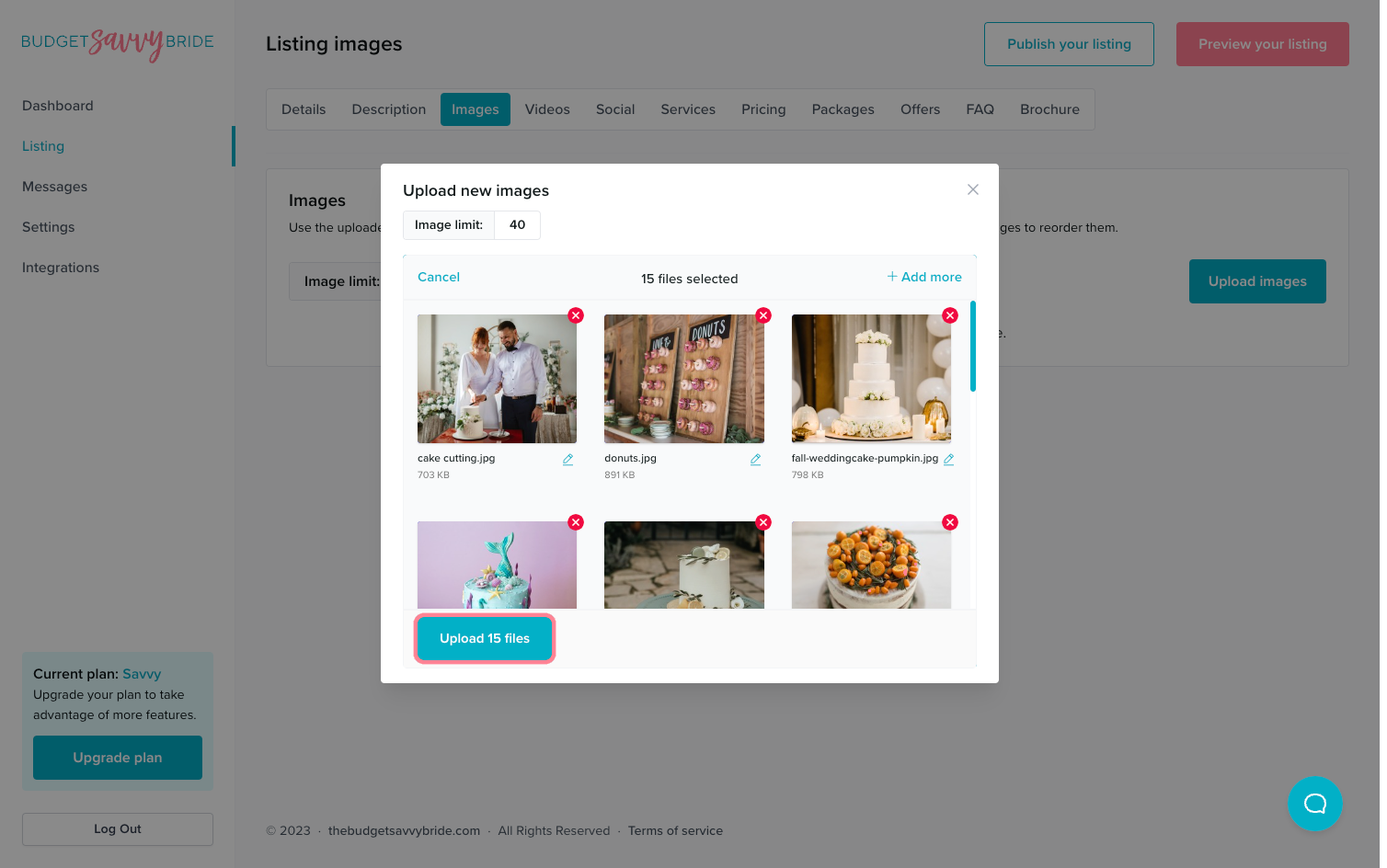
- Once you’ve selected your images, click the button that says ‘Upload files.’ The images will upload, then you can click the ‘X’ to close out of the upload modal.
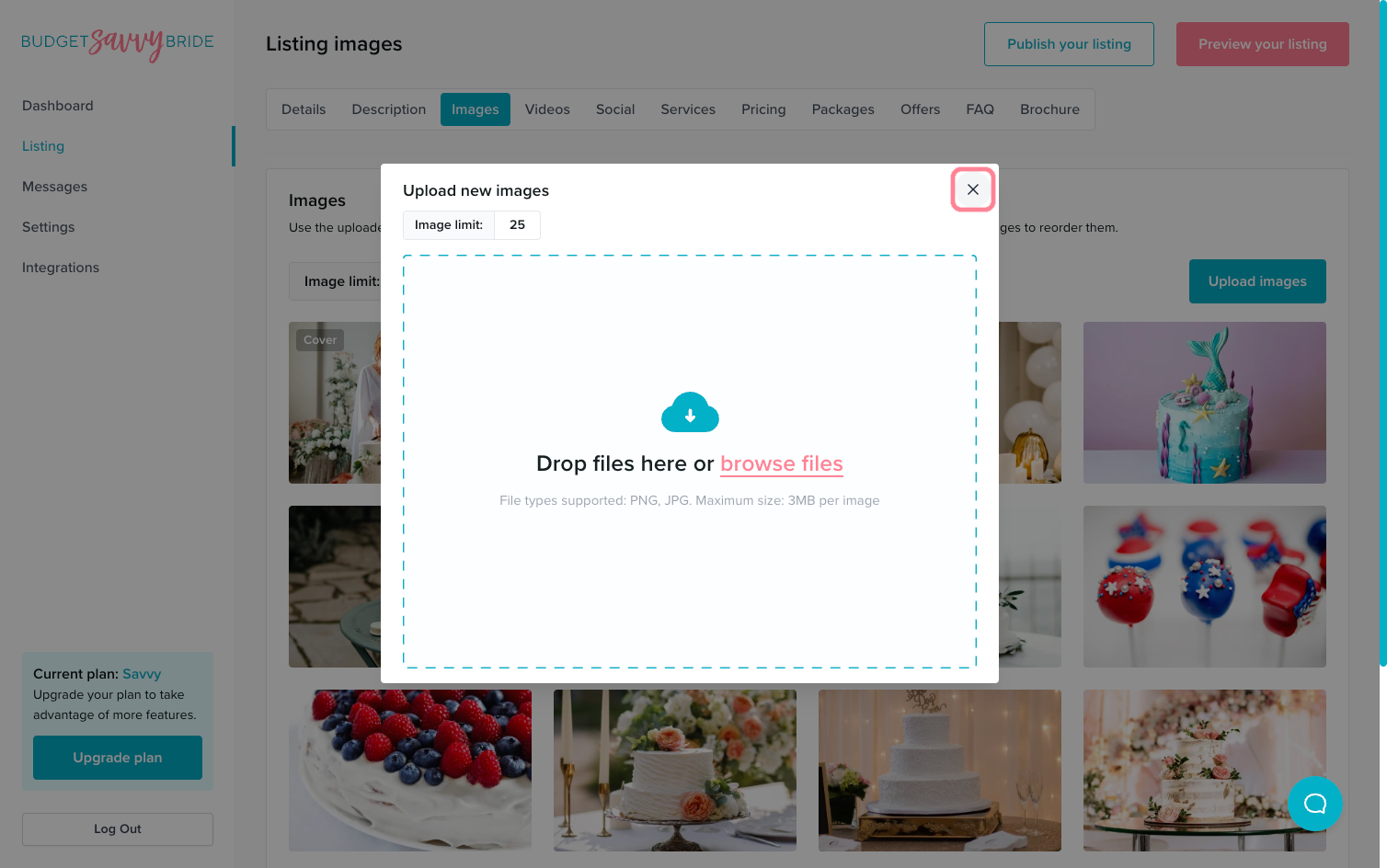
Please note: Your images will save automatically in the order they appear.
To rearrange the image order:
You can click and drag your images into the order you’d like them to appear.
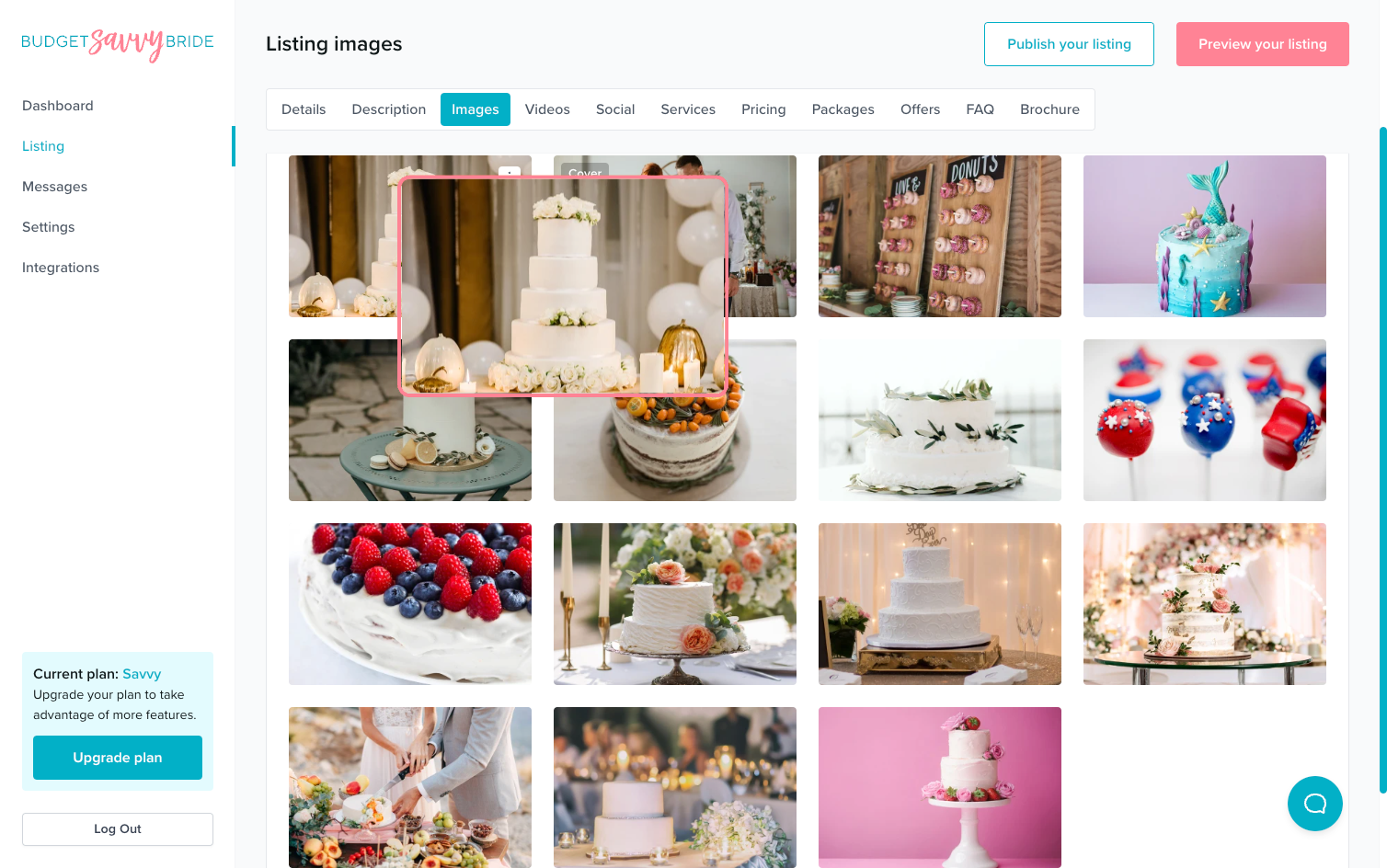
Your images will display on our listing in the order they are shown. Drag and drop the images to reorder them. The order will save automatically if you rearrange them.
Select a Cover Image
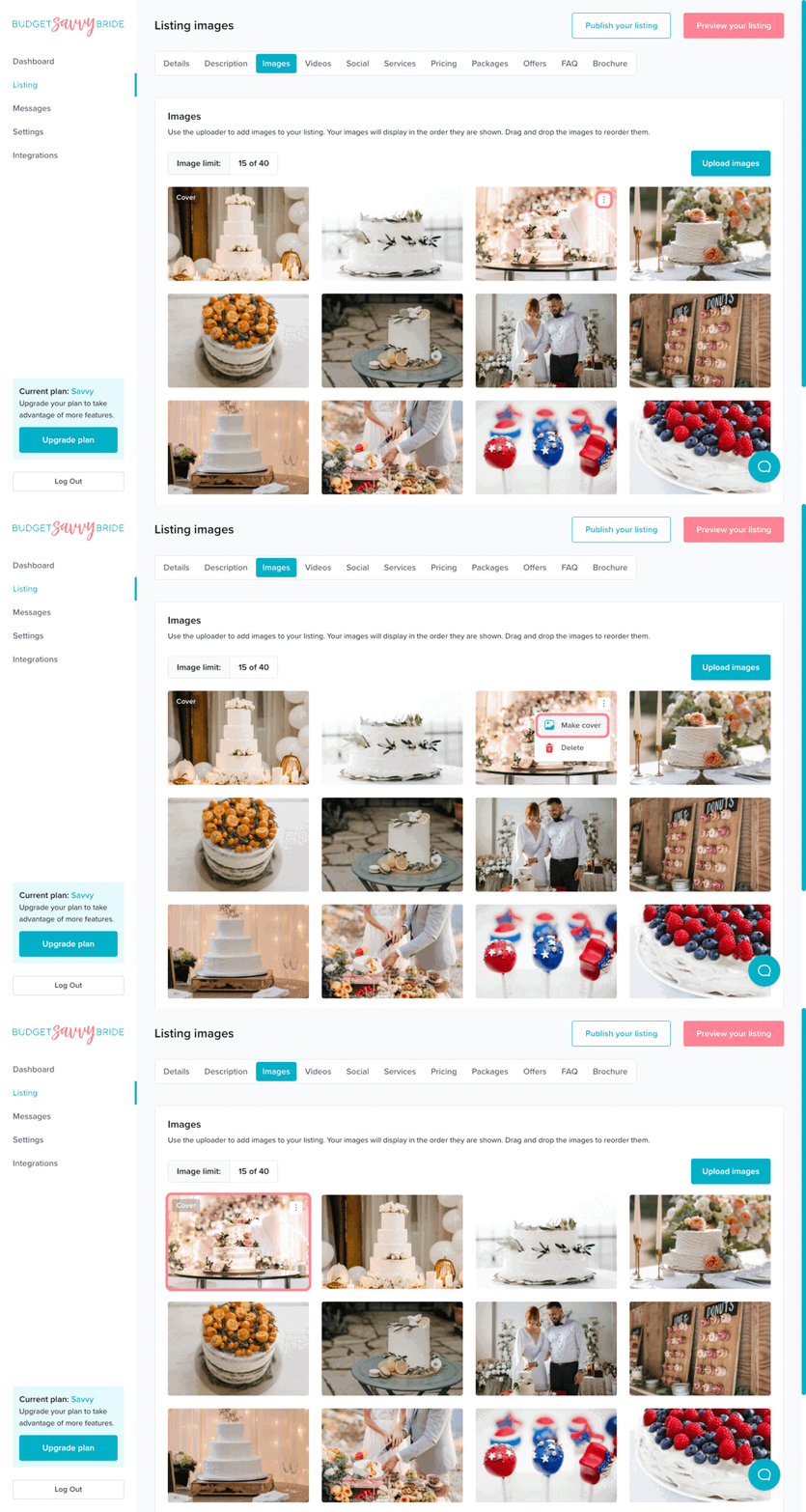
To select a cover image, you can either drag and drop your selected image to the first spot in your gallery, or you can click the three dots that are visible on the top right of an image and select ‘Make Cover’ to set that image as your cover image.
Delete an Image
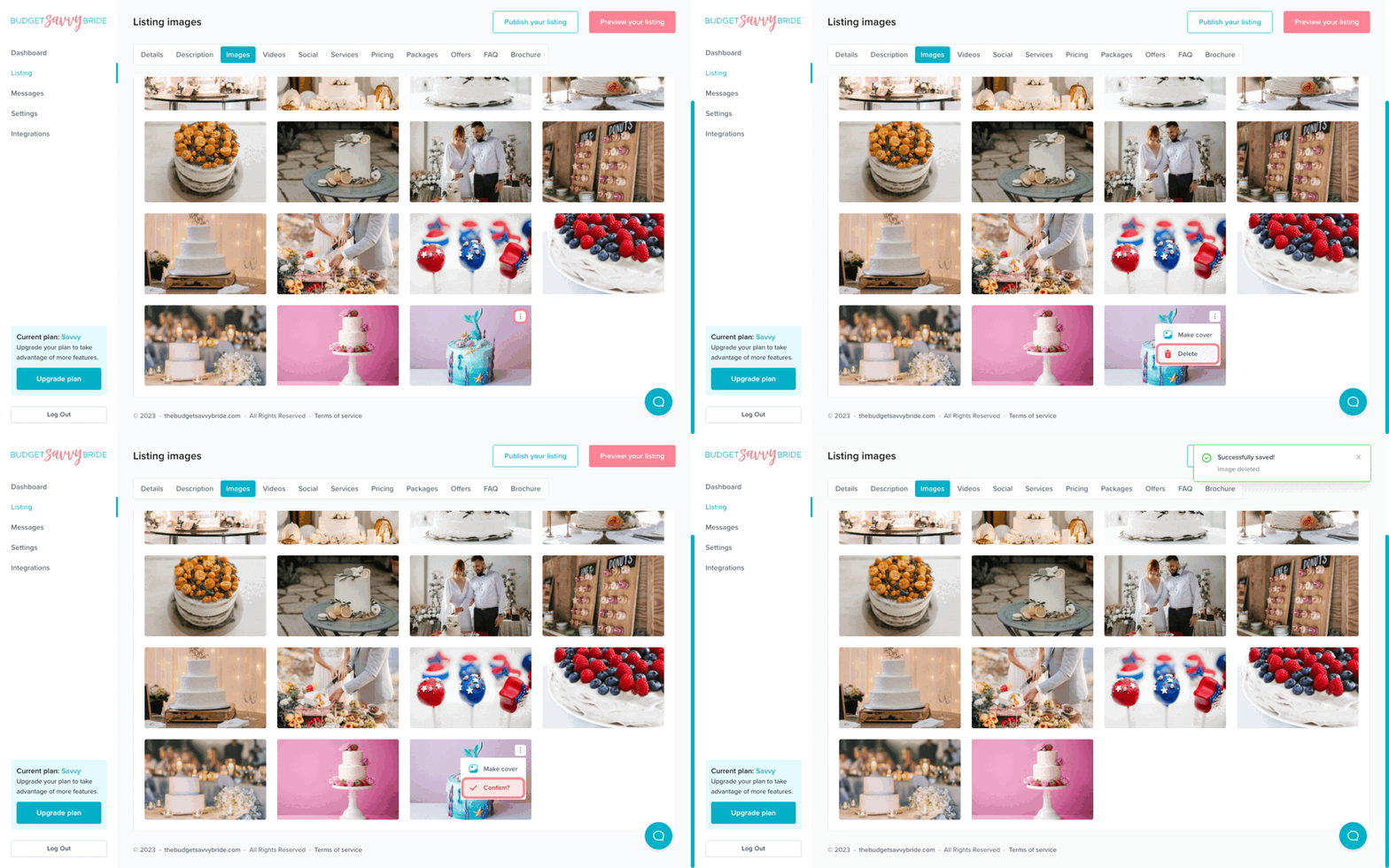
To delete an image, first click the three dots on the top right corner, then select ‘Delete.’ You will be prompted to confirm you want to delete the image. Once you confirm, the image will be removed from your gallery and the changes will be saved automatically.
Preview Your Gallery
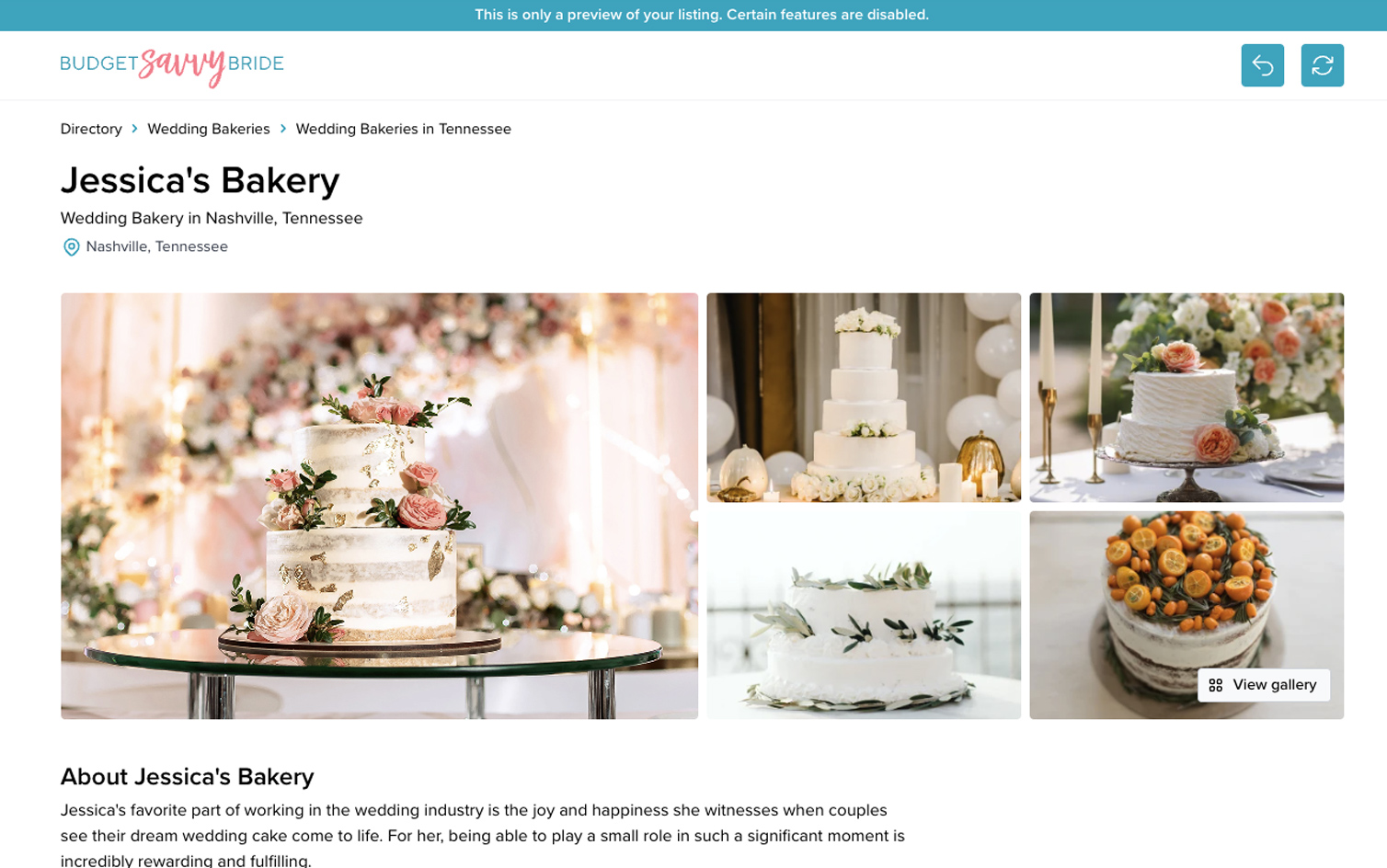
At any time, you can click the ‘Preview’ button in the top right of the window to preview your listing to see how it looks.
✅ Listing completion status:
Upload at least 5 images to meet the completion minimum requirements of your listing checklist!
NEXT SECTION >
Next up in your listing editor is Videos!