Account Dashboard
Help Docs Home > Getting Started > Account Dashboard
IN THIS ARTICLE:
- About the Dashboard
- Your Listing Statistics + Analytics
- Preview Listing
- Listing Completion Checklist
- Left Navigation
About the Dashboard
Your Account Dashboard is your account’s homepage.
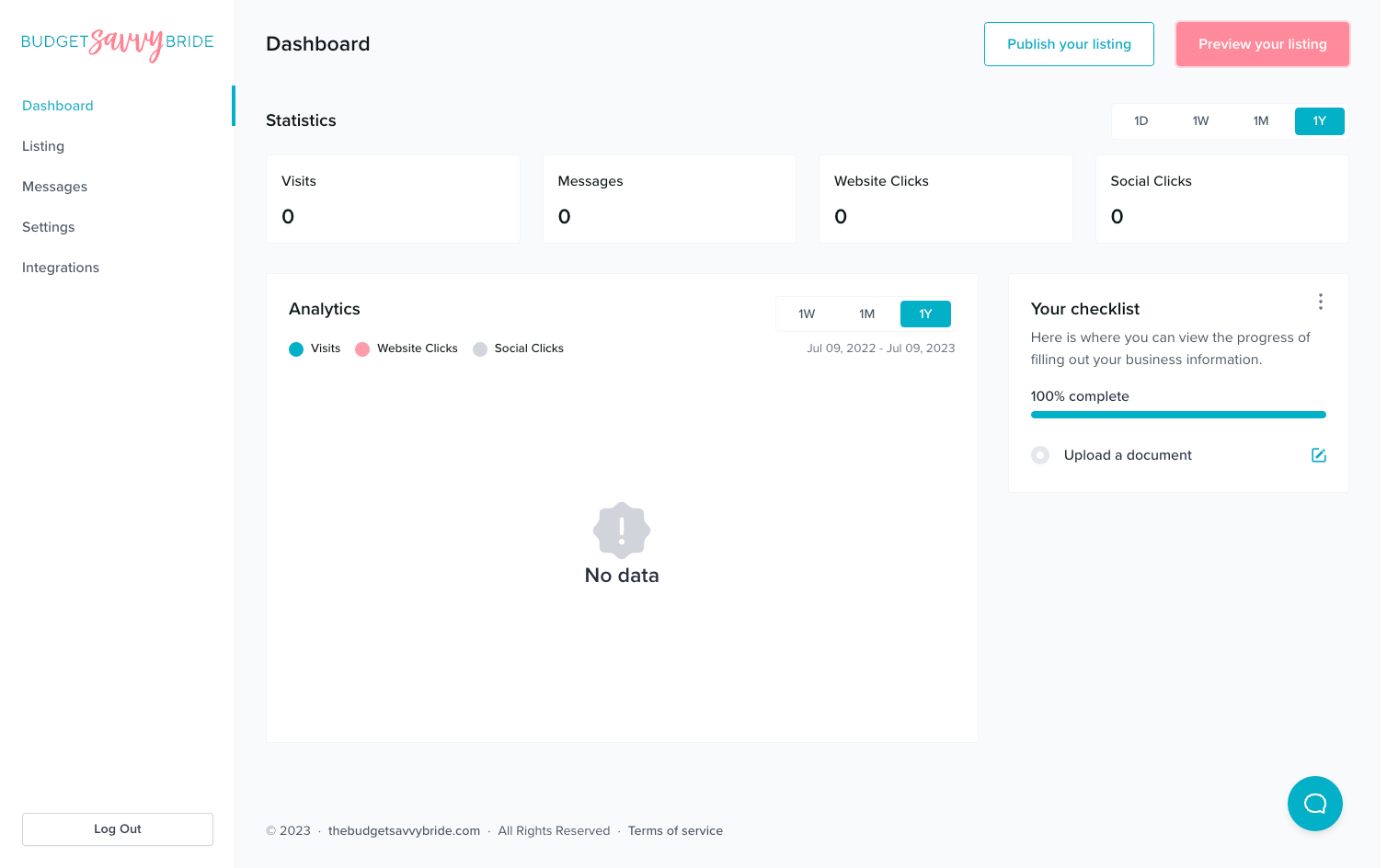
This is your account Dashboard. Here you can see an overview of all the important details of your account. At a glance, you can view your current subscription plan, your listing completion status, as well as any listing statistics from your live profile. You can also find links to edit the details of your listing, navigate to your messages inbox, view a preview of your listing, or upgrade your subscription plan.
Your Listing Statistics + Analytics
The top chart and graph give you an overview of your listing’s performance. You will be able to see exactly how many visits your profile has received, as well as how many couples have clicked over to your website or social links, if applicable. Additionally, you’ll see the total number of messages you’ve received from leads, as well as the total number of reviews received. The analytics graph will show you a visual representation of the visits and clicks on your profile in the last 30 days.
Preview Listing
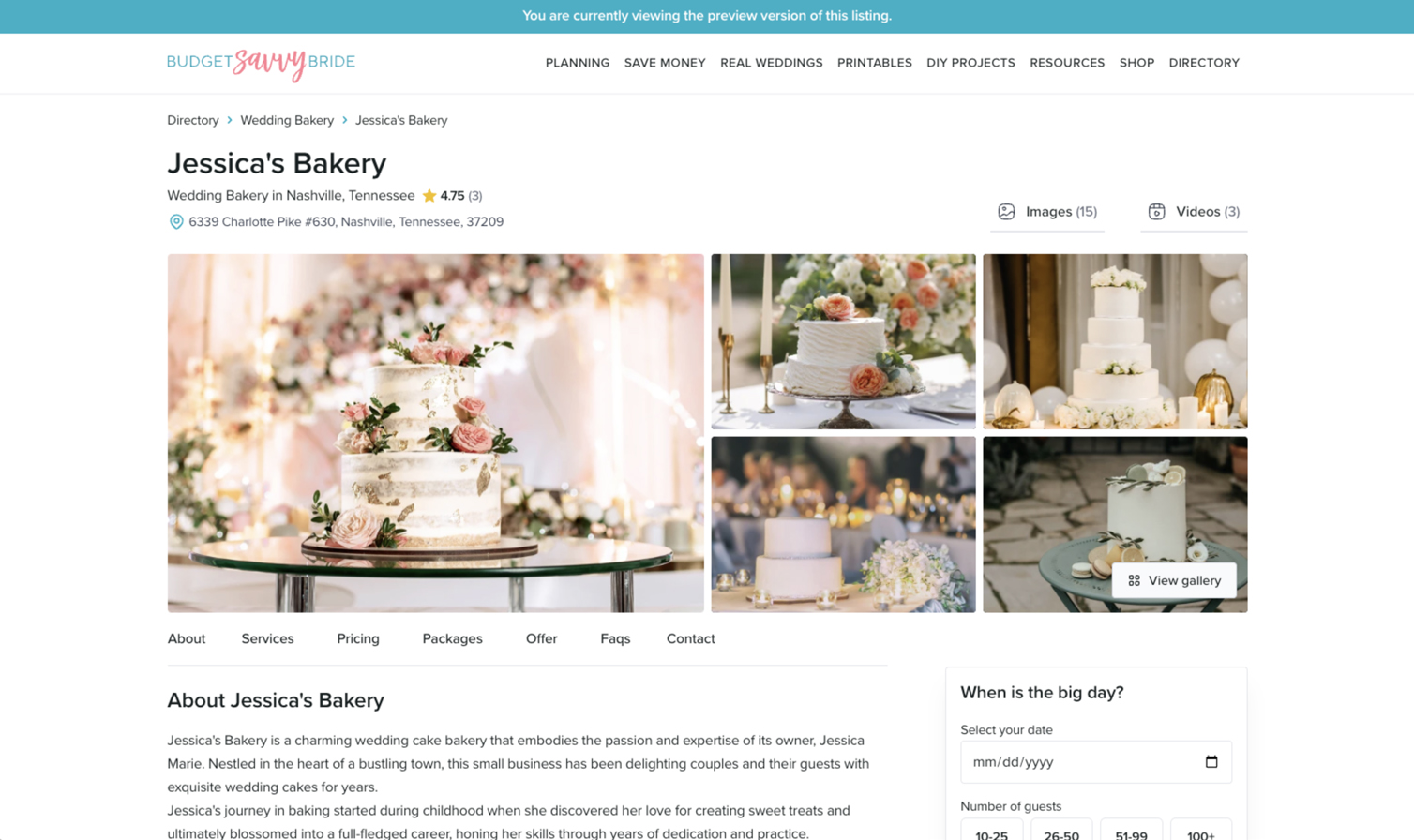
If you click this button, you’ll be taken to a new page where you can view a preview of your business listing.
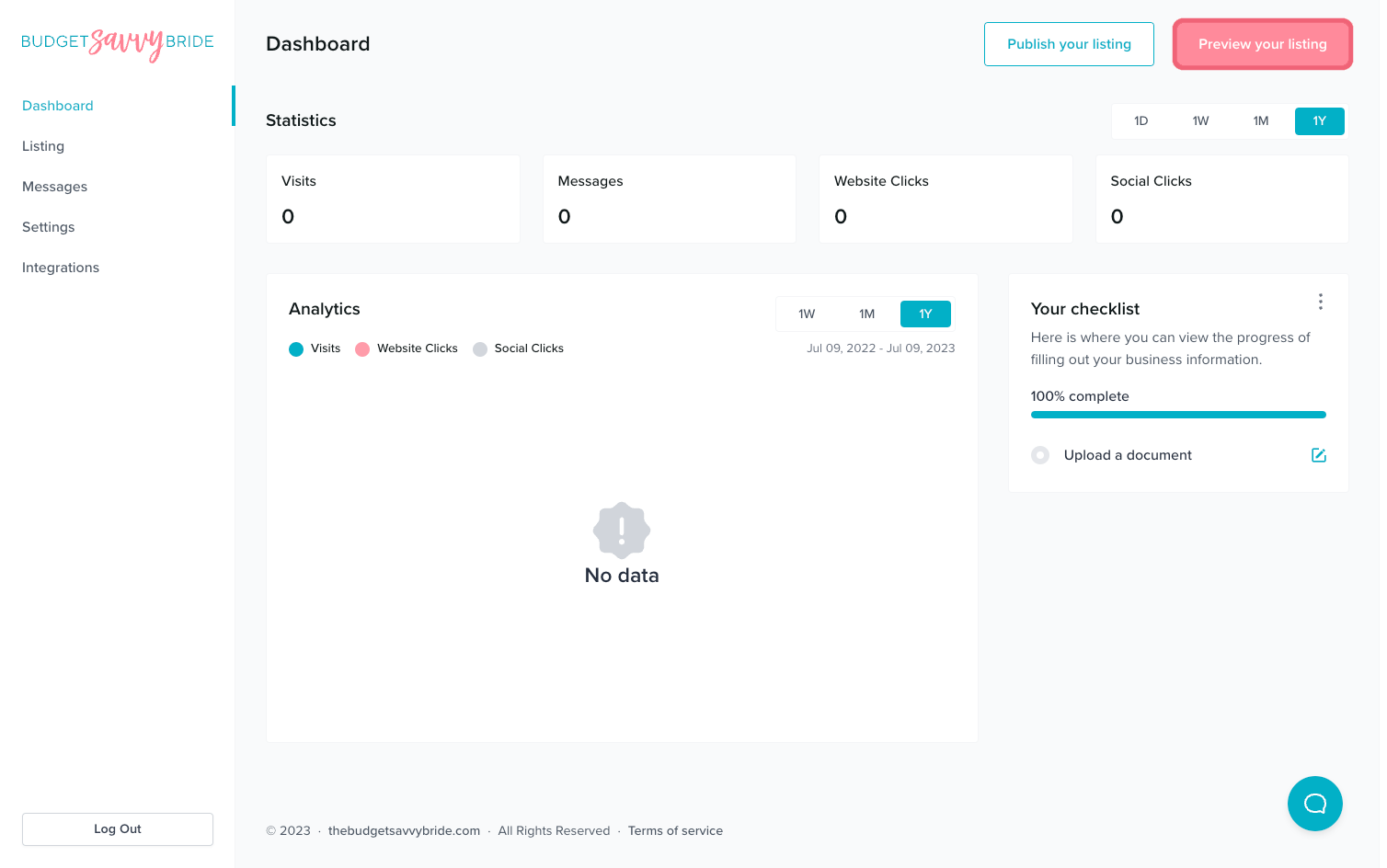
Review your listing preview to ensure everything is filled out and complete to the best of your ability.
Listing Completion Checklist
Make your listing as strong as it can be by ensuring your listing checklist is complete!
To view the remaining items on your listing checklist, click the three dots to the right on your dashboard.
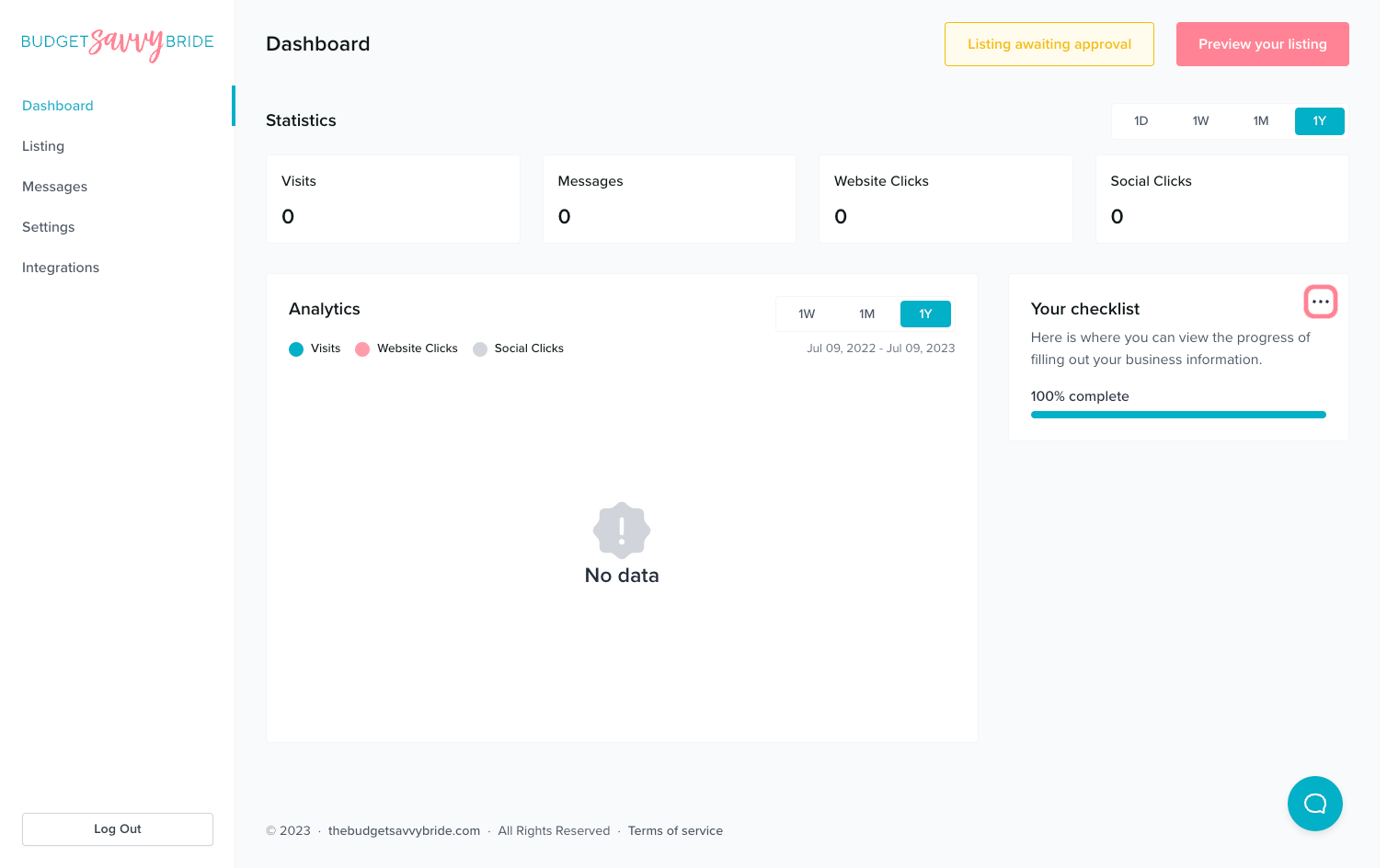
After clicking on the three dots, your checklist will slide out from the right-hand side. Here, you’ll be able to easily review which items are still incomplete.
When your listing is fully complete, it will show 100% and each item will be checked off, as seen below.
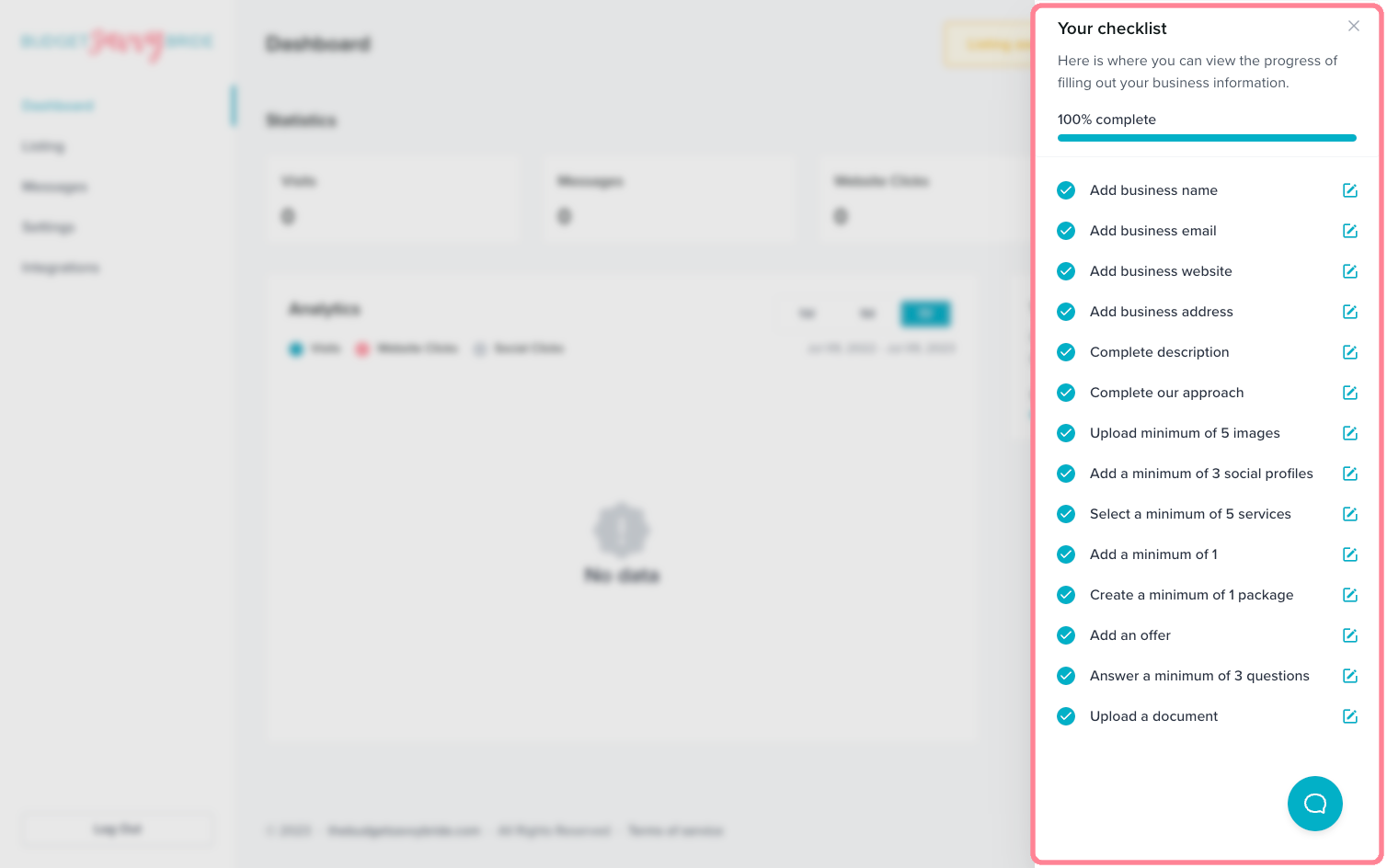
Here you will see an overview of the strength of your listing based on completeness. To make your listing as effective as possible, make sure to fill out your listing completely so that your percentage gets as close to 100% as possible! Any incomplete sections of your listing will be shared in the completeness area so you’ll know what, if anything, needs to be addressed or completed.
Left Navigation
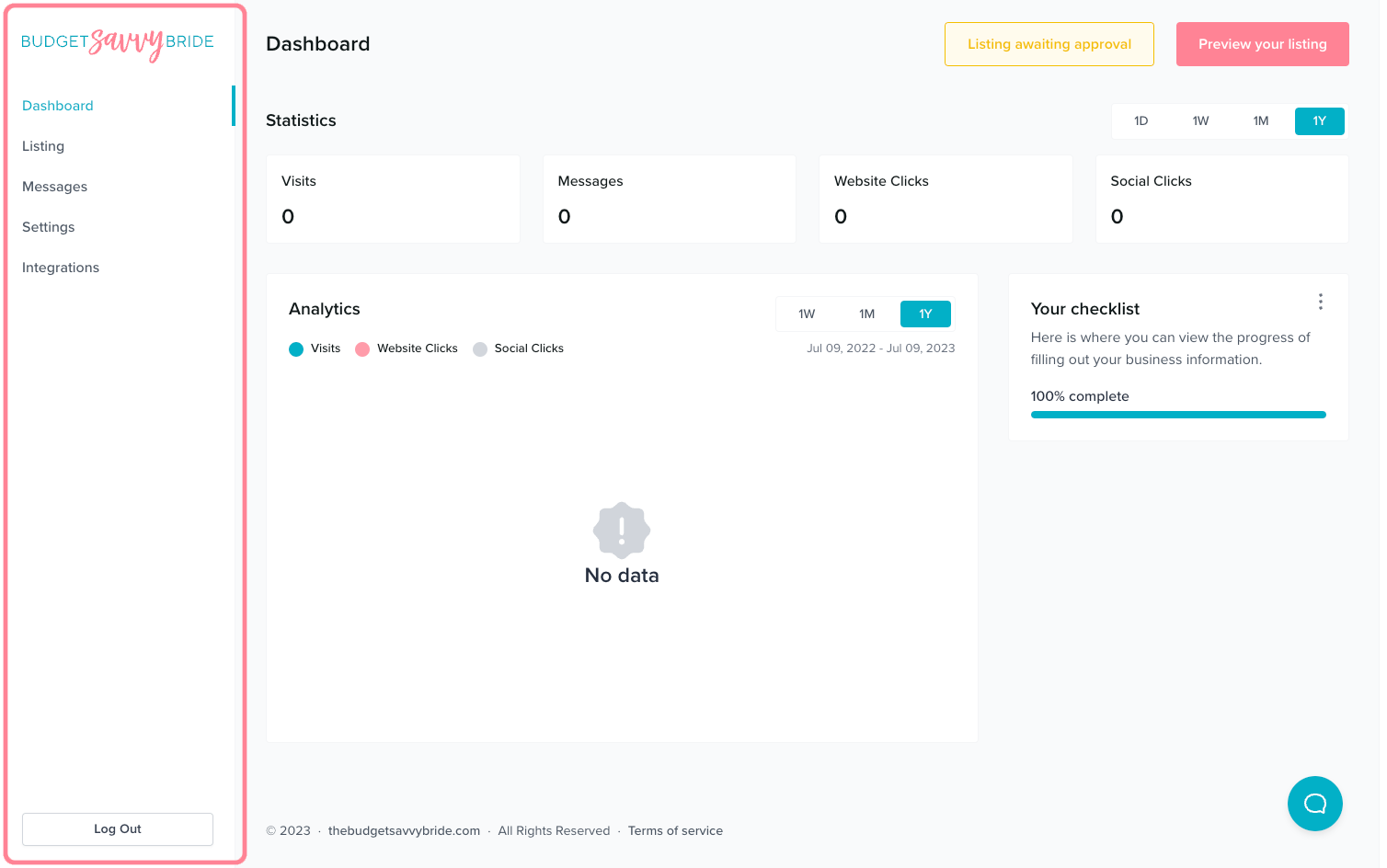
Along the left-hand side of your dashboard, you’ll see links for Listing, Messages, Settings, and Integration, as well as the Log Out button.
- Click ‘Listing‘ to create and/or edit your business listing.
- Click ‘Messages‘ to navigate to the message review area.
- Click ‘Settings‘ to edit your account info, billing, or subscription.
- Click ‘Integrations‘ to connect your business profiles for Facebook and Google to your Savvy Wedding Guide account.